Introduction
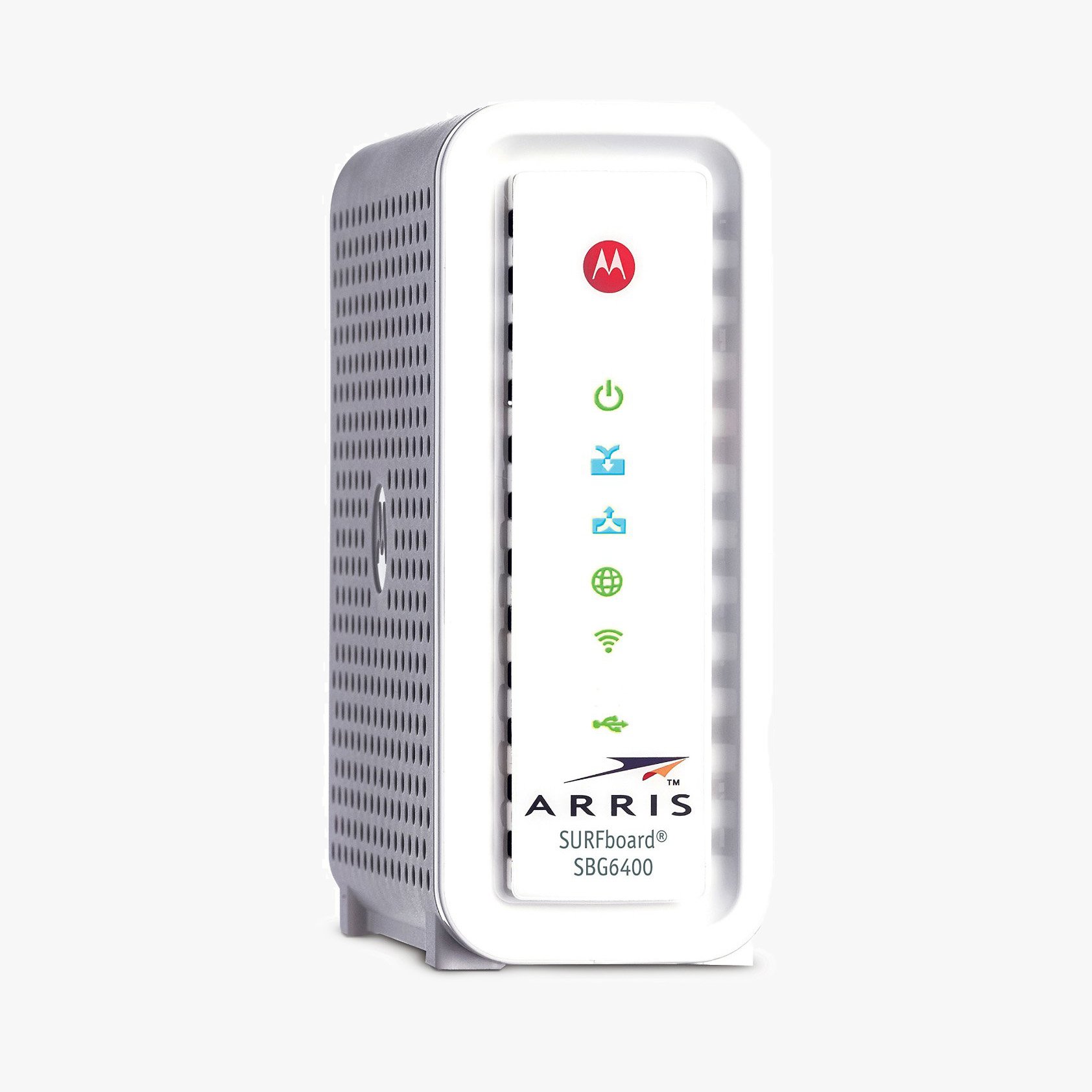
Welcome to our comprehensive user guide for the Surfboard SBG6400! In this article, we will provide you with detailed information, step-by-step instructions, and valuable insights to help you make the most of your Surfboard SBG6400 experience. Whether you’re a beginner or an advanced user, this guide will empower you to unlock the full potential of your device.
Table of Contents
- Overview
- Installation and Setup
- Connecting Devices
- Configuring Network Settings
- Advanced Features
- Troubleshooting
- Frequently Asked Questions (FAQs)
- Conclusion
1. Overview
The Surfboard SBG6400 is a high-performance modem-router combo designed to deliver fast and reliable internet connectivity. With its sleek design and advanced features, it has become a popular choice for both residential and small business users. This all-in-one device combines a DOCSIS 3.0 cable modem with a dual-band Wi-Fi router, eliminating the need for separate devices and reducing clutter in your space.
2. Installation and Setup
To ensure a smooth setup process, follow these steps:
- Unpack the Surfboard SBG6400 and gather all the necessary components.
- Connect one end of the coaxial cable to the cable outlet in your wall and the other end to the “CABLE IN” port on the Surfboard SBG6400.
- Connect the power adapter to the Surfboard SBG6400 and plug it into a power outlet.
- Wait for the device to power on and establish a connection with your internet service provider (ISP).
- Connect your computer or device to the Surfboard SBG6400 using an Ethernet cable or via Wi-Fi.
- Open a web browser and follow the on-screen instructions to complete the initial setup.
3. Connecting Devices
The Surfboard SBG6400 offers multiple connection options to accommodate various devices. Here’s how you can connect your devices to the Surfboard SBG6400:
- Wired Connection: Use an Ethernet cable to connect your computer, gaming console, or other compatible devices directly to one of the Ethernet ports on the Surfboard SBG6400. This provides a stable and reliable connection for bandwidth-intensive activities.
- Wireless Connection: The Surfboard SBG6400 supports dual-band Wi-Fi (2.4 GHz and 5 GHz). To connect your wireless devices, search for available networks on your device and select the appropriate SSID (network name) associated with your Surfboard SBG6400. Enter the Wi-Fi password when prompted, and you’ll be connected to the network wirelessly.
4. Configuring Network Settings
To customize and optimize your network settings, access the Surfboard SBG6400’s web-based interface. Follow these steps:
- Open a web browser on your connected device.
- Enter the default IP address of the Surfboard SBG6400 (usually 192.168.0.1 or 192.168.100.1) into the address bar and press Enter.
- You will be prompted to log in. Enter the default username and password (refer to the user manual or device documentation for the credentials).
- Once logged in, you can configure various settings, such as Wi-Fi SSID and password, security options, port forwarding, parental controls, and more. Make sure to save your changes after making any adjustments.
5. Advanced Features
The Surfboard SBG6400 offers a range of advanced features to enhance your internet experience. Some notable features include:
- Dual-Band Wi-Fi: Take advantage of both the 2.4 GHz and 5 GHz bands to optimize your wireless connections. The 2.4 GHz band provides better coverage and compatibility with older devices, while the 5 GHz band offers faster speeds for newer devices and applications.
- Guest Network: Create a separate network for guests to ensure the security and privacy of your main network. This allows visitors to connect to the internet without accessing your personal files or devices.
- Quality of Service (QoS): Prioritize network traffic based on your specific needs. You can allocate more bandwidth to certain devices or applications to ensure smooth streaming, gaming, or other high-bandwidth activities.
- IPv6 Support: The Surfboard SBG6400 is compatible with IPv6, the latest version of the internet protocol. IPv6 provides improved address space, enhanced security, and better network performance.
6. Troubleshooting
Encountering an issue with your Surfboard SBG6400? Here are some common troubleshooting tips to help you resolve problems:
- Restart the Device: Power cycle the Surfboard SBG6400 by unplugging it from the power source, waiting for a few seconds, and then plugging it back in. This can often resolve minor connectivity issues.
- Check Connections: Ensure all cables are securely connected and undamaged. A loose or faulty cable can cause connectivity problems.
- Update Firmware: Visit the manufacturer’s website to check for any available firmware updates for your Surfboard SBG6400. Keeping the firmware up to date can improve performance and address known issues.
If the problem persists, consult the user manual or reach out to the manufacturer’s customer support for further assistance.
7. Frequently Asked Questions (FAQs)
Q1: Can I use the Surfboard SBG6400 with any internet service provider?
A: Yes, the Surfboard SBG6400 is compatible with most major ISPs. However, it’s always recommended to check with your specific ISP to ensure compatibility before purchasing the device.
Q2: How can I change the Wi-Fi password on the Surfboard SBG6400?
A: To change the Wi-Fi password, access the Surfboard SBG6400’s web-based interface by following the steps outlined in the “Configuring Network Settings” section. Once logged in, navigate to the Wi-Fi settings and update the password accordingly.
Q3: What should I do if I forget the login credentials for the Surfboard SBG6400?
A: If you forget the login credentials, you can perform a factory reset on the Surfboard SBG6400. Locate the reset button (usually on the back of the device), press and hold it for a few seconds using a pin or paperclip, and release. This will restore the device to its default settings, including the default username and password.
8. Conclusion
Congratulations! You are now equipped with the knowledge and instructions to optimize your Surfboard SBG6400. From installation and setup to advanced features and troubleshooting, this user guide has covered a wide range of topics to help you make the most of your device. Should you have any further questions or require additional assistance, don’t hesitate to consult the user manual or reach out to the manufacturer’s support team. Enjoy your seamless and reliable internet experience with the Surfboard SBG6400!