Introduction
Welcome to our comprehensive guide on mastering ZTE Maven navigation! Whether you’re a new user or looking to enhance your navigation skills on the ZTE Maven device, you’ve come to the right place. In this guide, we will provide you with detailed instructions and valuable tips to help you navigate efficiently and make the most out of your ZTE Maven experience.
Table of Contents
- Understanding the ZTE Maven Navigation Interface
- Navigating the Home Screen
- Accessing and Managing Apps
- Exploring the Settings Menu
- Using Navigation Apps
- Advanced Navigation Features
- Troubleshooting Navigation Issues
Now, let’s dive into each section and explore the various aspects of mastering ZTE Maven navigation.
Understanding the ZTE Maven Navigation Interface
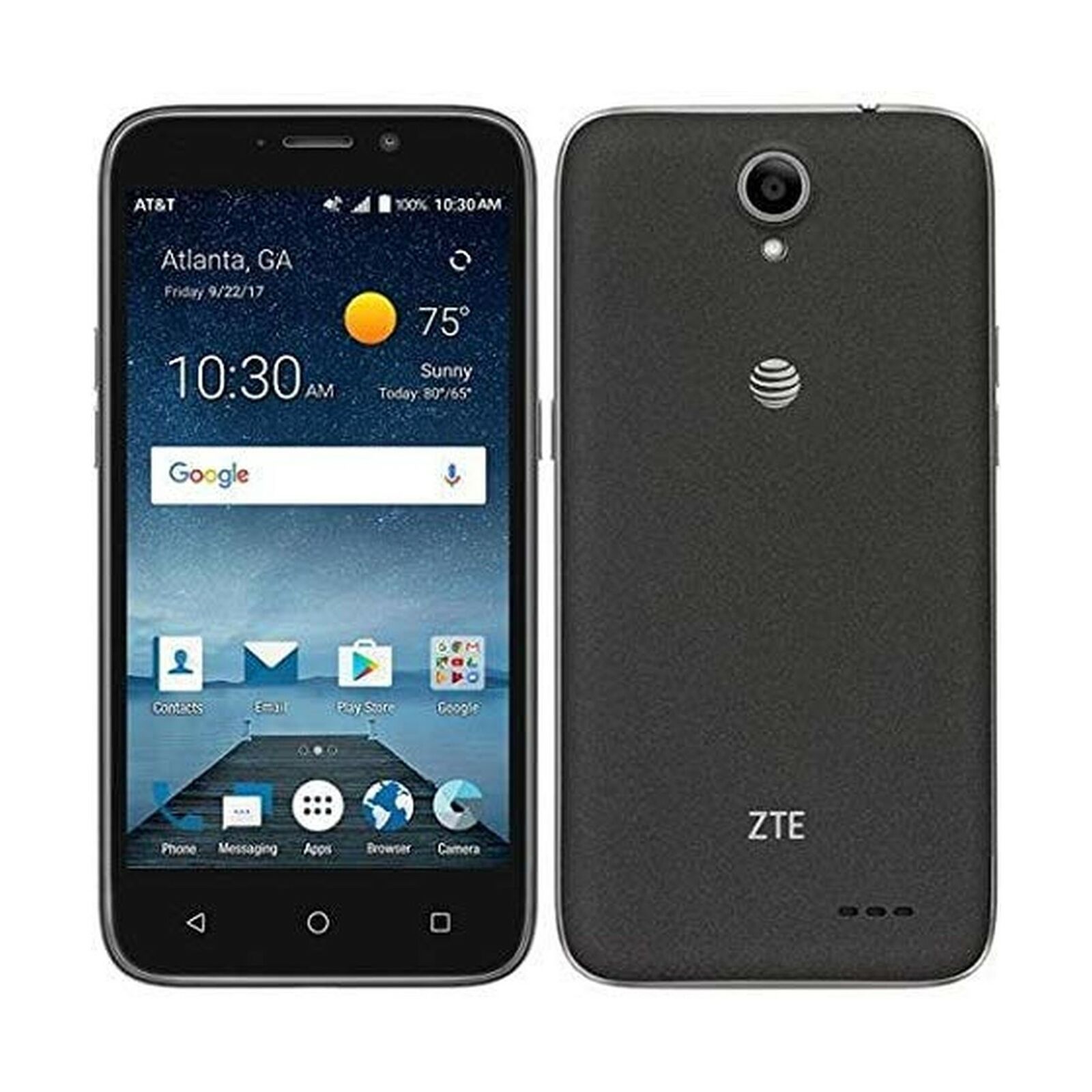
The ZTE Maven comes equipped with an intuitive navigation interface that allows you to effortlessly navigate through different screens and access essential features. The primary components of the navigation interface include:
- Home Screen: The central hub of your device, where you can access apps, widgets, and shortcuts.
- Navigation Bar: Located at the bottom of the screen, it provides easy access to navigation buttons such as Home, Back, and Recent Apps.
- App Drawer: A repository of all installed apps, accessible by swiping up or tapping the app drawer icon.
Navigating the Home Screen
The Home Screen serves as your launching pad for various applications and functions. Here are some tips to optimize your navigation on the Home Screen:
- App Icons: Tap on app icons to launch applications quickly. You can arrange icons by dragging and dropping them to desired positions.
- Widgets: Add widgets to the Home Screen for easy access to important information or quick actions.
- Folders: Group similar apps together by creating folders. Simply drag and drop one app onto another to create a folder.
Accessing and Managing Apps
Efficient app management is crucial for smooth navigation. Here’s how you can access and manage apps on your ZTE Maven:
- App Drawer: Swipe up or tap the app drawer icon to open the App Drawer. Scroll through the list or use the search bar to find specific apps.
- App Shortcuts: Some apps offer shortcuts to specific actions. Press and hold an app icon to reveal available shortcuts.
- Uninstalling Apps: To uninstall an app, go to Settings > Apps > select the app > Uninstall.
Exploring the Settings Menu
The Settings menu allows you to customize your ZTE Maven’s navigation experience. Let’s explore some essential settings:
- Display: Adjust display settings, including brightness, font size, and screen timeout.
- Gestures: Enable or customize gesture controls to navigate your device more efficiently.
- Navigation Bar: Customize the navigation bar by adding or rearranging buttons.
Using Navigation Apps
To further enhance your navigation experience, you can utilize navigation apps available on the Google Play Store. Here are a few popular options:
- Google Maps: A reliable and feature-rich navigation app offering real-time directions, traffic updates, and offline maps.
- Waze: Known for its crowd-sourced traffic information and community-driven features, Waze provides an interactive navigation experience.
- HERE WeGo: This app offers offline maps, voice-guided navigation, and public transit information, making it ideal for travelers.
Advanced Navigation Features
The ZTE Maven also offers advanced navigation features to optimize your experience. Let’s explore some of these features:
- GPS Accuracy: To ensure accurate positioning, enable High Accuracy Mode in the Location settings.
- Voice Commands: Use voice commands to navigate hands-free. Simply say “Hey Google” followed by your command.
- One-Handed Mode: If you find it challenging to navigate with one hand, enable One-Handed Mode in the Settings for easier access to buttons and icons.
Troubleshooting Navigation Issues
In rare cases, you may encounter navigation-related issues on your ZTE Maven. Here are some troubleshooting steps:
- Restart: Restart your device to resolve any temporary glitches affecting navigation.
- Clear Cache: In the Settings > Apps, select the navigation app and choose Clear Cache to resolve app-specific issues.
- System Updates: Keep your device up to date with the latest software updates to ensure optimal performance.
Conclusion
Congratulations! You are now equipped with the knowledge and tips to master ZTE Maven navigation. By understanding the navigation interface, effectively managing apps, exploring settings, utilizing navigation apps, and leveraging advanced features, you can navigate your ZTE Maven with confidence and ease. Remember to troubleshoot any issues that may arise and stay updated with the latest software releases for the best navigation experience. Enjoy exploring the world with your ZTE Maven!