Introduction
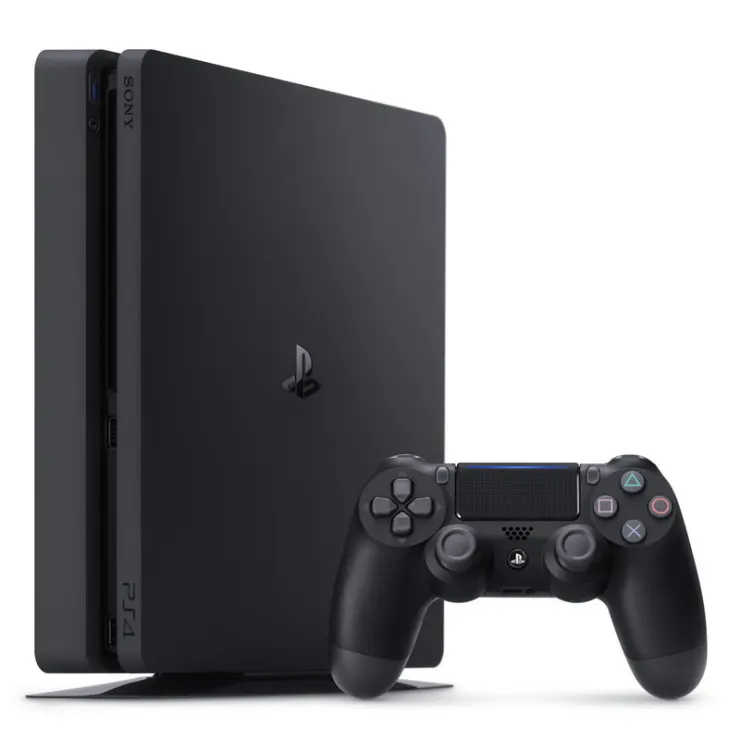
Are you a proud owner of a PlayStation 4 (PS4) and looking forward to experiencing a seamless game installation process? Look no further! This user guide is designed to provide you with step-by-step instructions on how to install games on your PS4 effortlessly. From setting up your console to accessing the PlayStation Store and managing downloads, this guide will ensure that you can dive into your gaming adventures without any hiccups.
Table of Contents
- Setting Up Your PS4
- Accessing the PlayStation Store
- Browsing and Selecting Games
- Purchasing and Downloading Games
- Managing Downloads
- Installing Games
- Updating Games
- Tips for Faster Installations
- Troubleshooting Installation Issues
- Organizing Your Game Library
- Transferring Games to External Storage
- Rest Mode and Background Downloads
- Benefits of Digital Game Ownership
- Conclusion
- FAQs
1. Setting Up Your PS4
Before you can enjoy seamless game installations, you need to ensure that your PS4 is properly set up. Follow these steps:
- Unbox your PS4 and connect all the necessary cables.
- Power on the console and follow the on-screen instructions to complete the initial setup.
- Connect your PS4 to the internet via Wi-Fi or an Ethernet cable.
- Sign in to your PlayStation Network (PSN) account or create a new one if you don’t have an existing account.
2. Accessing the PlayStation Store
The PlayStation Store is the digital marketplace where you can browse and download a wide variety of games. To access the PlayStation Store:
- Ensure that your PS4 is connected to the internet.
- From the PS4 home screen, select the PlayStation Store icon.
3. Browsing and Selecting Games
Once you’re in the PlayStation Store, you can explore the vast selection of games available. Follow these steps:
- Use the search bar or browse through the categories to find the game you want.
- Read the game’s description, check user reviews, and view screenshots or videos to make an informed decision.
- Select the game to access its details page.
4. Purchasing and Downloading Games
After selecting a game, you can proceed with the purchase and download process:
- Click on the “Add to Cart” or “Buy” button.
- If prompted, confirm your purchase and select a payment method.
- Once the purchase is complete, the game will begin downloading automatically.
5. Managing Downloads
To manage your downloads effectively, follow these steps:
- From the PS4 home screen, go to the “Notifications” area.
- Select “Downloads” to view the list of ongoing and completed downloads.
- Prioritize your downloads by pausing or resuming them as needed.
6. Installing Games
Once a game is downloaded, you need to install it before playing:
- From the PS4 home screen, go to the “Library” area.
- Locate the downloaded game and select it.
- Choose “Install” to initiate the installation process.
- Wait for the installation to complete.
7. Updating Games
To ensure optimal performance and access the latest features, it’s crucial to keep your games updated:
- From the PS4 home screen, go to the “Library” area.
- Locate the game that requires an update and select it.
- Choose “Update” to start the update process.
- Wait for the update to download and install.
8. Tips for Faster Installations
If you want to expedite the game installation process, consider the following tips:
- Close any unnecessary applications or games running in the background.
- Use a wired Ethernet connection for faster download and installation speeds.
- Optimize your internet connection by prioritizing the PS4’s network traffic.
- Keep your PS4 software up to date by installing the latest system updates.
9. Troubleshooting Installation Issues
Encountering installation issues can be frustrating, but here are some troubleshooting tips to help you out:
- Ensure that you have sufficient storage space on your PS4 for the game installation.
- Restart your PS4 and try reinstalling the game.
- Check for any error codes or error messages and search for solutions online.
- Contact PlayStation Support for further assistance if the issue persists.
10. Organizing Your Game Library
As your game collection grows, organizing your library becomes essential. Here’s how you can do it:
- From the PS4 home screen, go to the “Library” area.
- Select “Options” and choose “Sort” to arrange your games by various criteria like name, genre, or purchase date.
- Create folders to group similar games together for easier access.
11. Transferring Games to External Storage
If you’re running out of storage space on your PS4, you can transfer games to an external storage device:
- Connect a compatible external hard drive to your PS4.
- From the PS4 home screen, go to the “Settings” menu.
- Select “Storage” and then “Extended Storage.”
- Choose the games you want to transfer and select “Move to Extended Storage.”
12. Rest Mode and Background Downloads
You can take advantage of the PS4’s rest mode to continue downloads while the console is in a low-power state:
- From the PS4 home screen, go to the “Settings” menu.
- Select “Power Saving Settings” and then “Set Features Available in Rest Mode.”
- Enable “Stay Connected to the Internet” and “Enable Turning On PS4 from Network.”
- With these settings enabled, your PS4 will continue downloading games even when in rest mode.
13. Benefits of Digital Game Ownership
Opting for digital game purchases offers several advantages:
- Convenience: Instantly download games without leaving your home.
- Accessibility: Access your game library from any PS4 console once you sign in.
- Portability: Carry your game library on the go with a PS4-compatible device.
- Preloading: Preload highly anticipated games before their release date.
14. Conclusion
Installing games on your PS4 should now be a seamless process. By following the steps outlined in this user guide, you can effortlessly browse, purchase, and install games from the PlayStation Store. Remember to keep your games updated and manage your library for a smooth gaming experience.
FAQs
- Q: Can I install games while playing another game on my PS4? A: No, the PS4 requires you to exit the game you’re currently playing before starting the installation process for a new game.
- Q: Can I install games from a disc instead of downloading them? A: Yes, you can install games from physical discs by inserting them into your PS4’s disc drive. Follow the on-screen instructions for installation.
- Q: Can I play games on my PS4 while they are still downloading? A: In most cases, you need to wait for the game to finish downloading and installing before playing. However, some games may have a partial download option that allows you to start playing while the rest of the game downloads.
- Q: Can I delete a game after installing it and reinstall it later? A: Yes, you can delete games from your PS4 to free up storage space. You can always reinstall them later from your library or the PlayStation Store.
- Q: Are digital game downloads faster than physical installations? A: Digital game downloads can be faster due to the absence of disc read times. However, download speeds depend on your internet connection and server congestion.