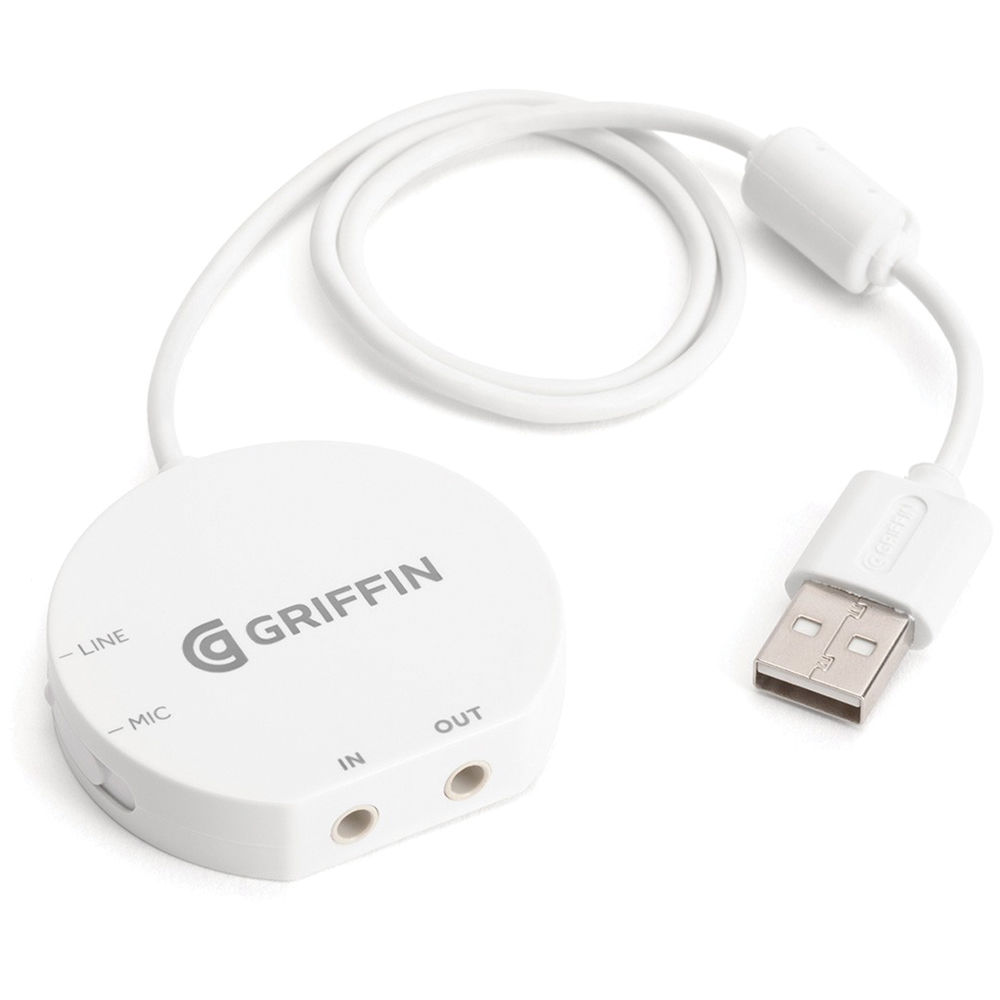
Welcome to our comprehensive guide on resolving iMic setup issues. At [our website], we understand the frustration that can arise when setting up your iMic device and encountering difficulties along the way. We are here to provide you with detailed instructions and troubleshooting steps to help you overcome any obstacles you may face during the setup process. Our aim is to assist you in successfully configuring your iMic and ensure a smooth and hassle-free experience.
Understanding iMic and Its Benefits
Before we delve into troubleshooting, let’s briefly discuss what iMic is and the advantages it offers. The iMic is an external USB audio adapter that enables you to connect various audio devices to your computer. Whether you want to record music, podcast, or enhance your overall audio experience, the iMic provides a convenient and versatile solution. Its compact design, portability, and compatibility with both Mac and PC make it a popular choice for many audio enthusiasts.
Common iMic Setup Issues
Now, let’s address some common setup issues that users may encounter with their iMic devices. By identifying the problem you’re facing, you can swiftly proceed to the appropriate troubleshooting steps.
1. Connection and Recognition Problems
If your iMic is not being recognized by your computer or you’re experiencing connectivity issues, follow these steps to troubleshoot the problem:
- Ensure that the iMic is securely connected to an available USB port on your computer.
- Check if the USB cable you’re using is functioning properly by trying a different cable or using the iMic with another computer.
- Verify that the iMic is compatible with your operating system. Visit the official website of the iMic manufacturer to find the latest drivers and software updates.
- Restart your computer and try connecting the iMic again.
2. Audio Distortion or Poor Quality
In case you’re encountering audio distortion or poor sound quality while using the iMic, consider the following solutions:
- Confirm that the audio source you are connecting to the iMic is working correctly. Test it with another device to rule out any potential issues.
- Adjust the input and output levels of the iMic in your computer’s sound settings. Make sure they are appropriately configured for optimal audio quality.
- Try using a different USB port on your computer. Sometimes, certain USB ports may not provide sufficient power, resulting in audio distortion.
- If using the iMic with a microphone, ensure that the microphone itself is in good condition and properly connected.
3. Driver or Software Conflicts
Occasionally, conflicts with existing drivers or software can hinder the proper functioning of the iMic. Follow these steps to resolve such conflicts:
- Uninstall any previously installed audio drivers related to the iMic. Access the Device Manager on your computer and remove any redundant drivers.
- Disable or temporarily close any audio-related software applications running in the background, such as music players or recording software.
- Download and install the latest drivers and software for the iMic from the official manufacturer’s website. Ensure compatibility with your operating system.
Troubleshooting Tips and Tricks
To further assist you in resolving iMic setup issues, here are some additional tips and tricks:
- Make use of the official user manual and documentation provided by the iMic manufacturer. These resources often contain specific troubleshooting steps and valuable insights.
- Join online forums or communities dedicated to audio equipment, where you can seek advice from experienced users who may have encountered and resolved similar issues.
- Contact the iMic manufacturer’s support team for personalized assistance. They possess in-depth knowledge about their product and can guide you through the troubleshooting process.
Conclusion
We hope this comprehensive guide has helped you overcome any iMic setup issues you may have encountered. By following the troubleshooting steps and tips provided, you should now be able to configure your iMic successfully and enjoy its numerous benefits. Remember, patience and persistence are key when troubleshooting technical difficulties. Should you require further assistance or have any additional questions, feel free to reach out to us or consult the official iMic support channels. Happy iMic setup and enjoy your enhanced audio experience!