Introduction
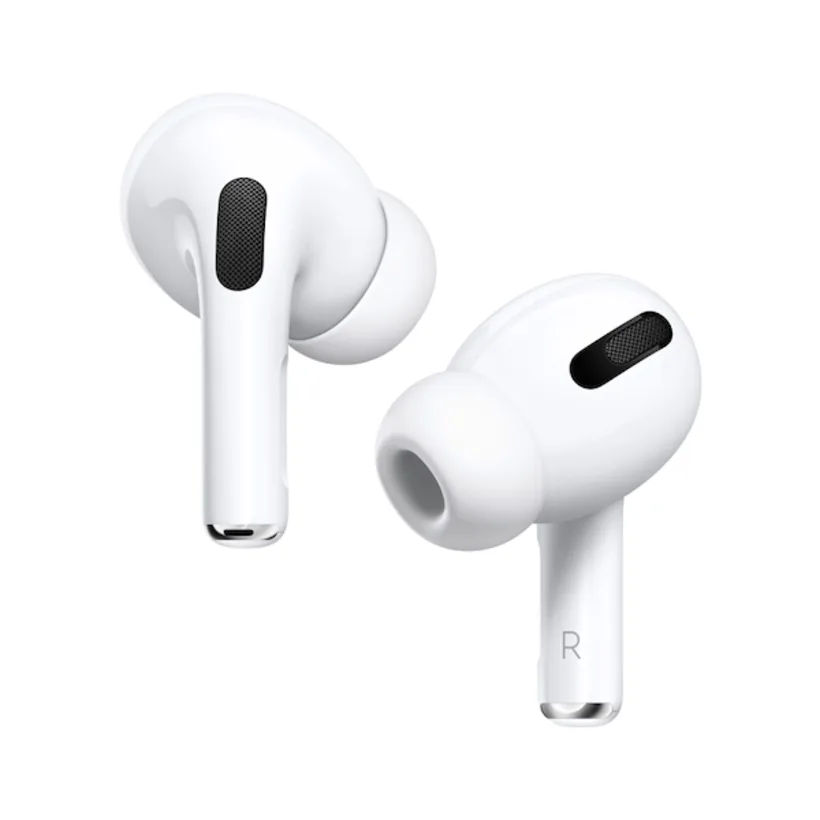
Welcome to our comprehensive step-by-step guide on how to pair AirPods Pro, the cutting-edge wireless earbuds developed by Apple. In this tutorial, we will provide you with detailed instructions to successfully connect your AirPods Pro to your iPhone, iPad, or any other compatible device. With our easy-to-follow steps, you’ll be able to enjoy the seamless and immersive audio experience offered by these remarkable earbuds.
Prerequisites
Before we dive into the pairing process, let’s ensure you have everything you need:
- AirPods Pro: Make sure you have your AirPods Pro fully charged and ready to go.
- Compatible Device: You will need an iPhone, iPad, or any other Apple device running the latest iOS or iPadOS version.
- Active Bluetooth: Ensure that Bluetooth is enabled on your device.
Step 1: Accessing Bluetooth Settings
To initiate the pairing process, you first need to access the Bluetooth settings on your device. Follow these steps:
- Unlock your iPhone or iPad and navigate to the home screen.
- Swipe down from the top-right corner (iPhone X or later) or swipe up from the bottom of the screen (iPhone 8 or earlier) to open the Control Center.
- Press and hold the card in the top-right corner of the Control Center that displays the connectivity options, including Wi-Fi, Cellular, and Bluetooth.
- This will open the Bluetooth settings menu.
Step 2: Opening AirPods Pro Case
Next, you need to open the AirPods Pro case to initiate the pairing mode. Follow these instructions:
- Locate your AirPods Pro case.
- Open the lid of the case. Ensure that your AirPods Pro are inside the case.
Step 3: Pairing AirPods Pro
Now that your Bluetooth settings are open and the AirPods Pro case is accessible, it’s time to pair your AirPods Pro with your device:
- Within the Bluetooth settings menu, locate the list of available devices.
- Look for the AirPods Pro entry in the list and tap on it to initiate the pairing process.
- A pop-up window will appear on your device’s screen, confirming the pairing request. Tap “Connect” to proceed.
Step 4: Verifying Connection
After initiating the pairing process, you will need to verify the connection between your AirPods Pro and your device:
- Once the pairing is complete, you will notice a confirmation message on your device’s screen, indicating a successful connection.
- To ensure proper functionality, play a sample audio file or stream a video to test the audio output through your AirPods Pro.
Step 5: Automatic Device Switching (Optional)
AirPods Pro offer a convenient feature called Automatic Device Switching, which allows seamless audio transition between multiple Apple devices signed in with the same Apple ID. Here’s how to enable it:
- On your iPhone or iPad, navigate to the home screen and access the “Settings” app.
- Scroll down and tap on “Bluetooth.”
- Find your AirPods Pro in the list of connected devices and tap the “i” icon next to it.
- In the AirPods Pro settings menu, locate the “Connect to This iPhone/iPad” section and enable the “Automatic” option.
Conclusion
Congratulations! You have successfully paired your AirPods Pro with your iPhone, iPad, or other compatible devices. Now you can enjoy the wireless freedom and exceptional sound quality provided by these remarkable earbuds. Remember, if you encounter any issues during the pairing process, refer back to this guide for assistance. Happy listening!