Introduction
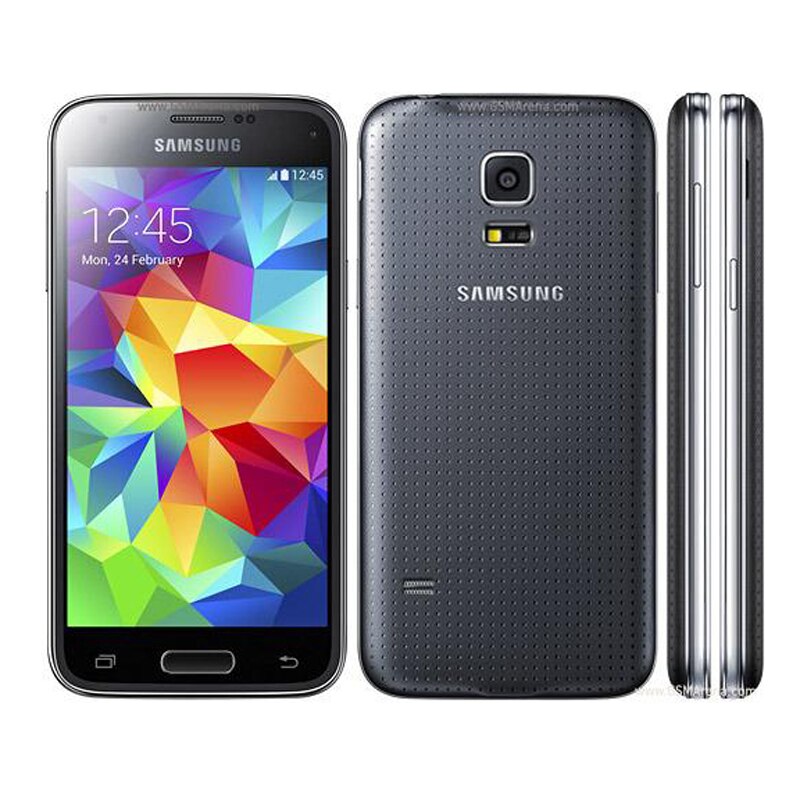
Welcome to our comprehensive troubleshooting guide for the Galaxy S5 smartphone. In this article, we will address common issues that users may encounter while using their Galaxy S5 devices and provide effective solutions to overcome these problems. Whether you’re facing battery drain, connectivity issues, or software glitches, we’ve got you covered.
1. Battery Drain Issues
1.1. Identify Power-Hungry Apps
One common problem that Galaxy S5 users may experience is rapid battery drain. To tackle this issue, it is essential to identify power-hungry apps that may be consuming excessive battery life. Follow these steps to pinpoint such apps:
- Go to “Settings” on your device.
- Tap on “Battery” to access battery-related settings.
- Check the list of apps and their battery usage percentages.
- Identify any apps that appear to be consuming a significant amount of power.
1.2. Close Background Apps
Once you have identified power-hungry apps, it is advisable to close unnecessary background apps to conserve battery life. Here’s how you can do it:
- Tap the “Recent Apps” button (usually located on the bottom-left or bottom-right of the screen).
- Swipe left or right to navigate through the list of running apps.
- Swipe an app left or right to close it.
- Alternatively, tap the “Clear All” button to close all running apps simultaneously.
1.3. Adjust Screen Brightness and Timeout
Another effective way to reduce battery drain is by adjusting your device’s screen brightness and timeout settings. Here’s what you can do:
- Go to “Settings” and select “Display.”
- Adjust the brightness slider to an optimal level that balances visibility and battery conservation.
- Set the screen timeout to a shorter duration (e.g., 30 seconds or 1 minute) to minimize unnecessary screen usage.
1.4. Disable Unused Features and Services
Disabling unused features and services can significantly improve your Galaxy S5’s battery life. Consider turning off the following options when not in use:
- Wi-Fi: Swipe down from the top of the screen to access the quick settings panel and toggle off Wi-Fi.
- Bluetooth: Follow the same procedure as Wi-Fi to disable Bluetooth.
- GPS: Go to “Settings” > “Location” and toggle off GPS.
- NFC: Navigate to “Settings” > “NFC” and switch off NFC.
2. Connectivity Issues
2.1. Troubleshoot Wi-Fi Problems
If you’re experiencing Wi-Fi connectivity issues on your Galaxy S5, try the following steps:
- Ensure that your Wi-Fi router is functioning correctly.
- Restart your Galaxy S5 and Wi-Fi router.
- Forget the Wi-Fi network on your device and reconnect.
- Update the firmware on your router.
- Reset network settings on your Galaxy S5 by going to “Settings” > “General Management” > “Reset” > “Reset Network Settings.”
2.2. Fix Bluetooth Pairing Problems
Bluetooth pairing problems can be frustrating. To troubleshoot this issue, follow these steps:
- Check if Bluetooth is enabled on both devices.
- Restart your Galaxy S5 and the Bluetooth device you’re trying to pair with.
- Forget the Bluetooth connection on your Galaxy S5 and establish a new pairing.
2.3. Address Mobile Data Connectivity Issues
If you’re unable to connect to mobile data on your Galaxy S5, try these solutions:
- Ensure that mobile data is enabled in your device’s settings.
- Restart your device and check if the issue persists.
- Contact your network service provider to verify if there are any network outages or restrictions in your area.
3. Software Glitches and Performance Issues
3.1. Clear App Cache and Data
Over time, cached data can accumulate on your Galaxy S5 and impact its performance. To address software glitches, clear the cache and data of problematic apps:
- Go to “Settings” and select “Apps.”
- Choose the app experiencing issues from the list.
- Tap on “Storage” and then “Clear Cache” or “Clear Data.”
3.2. Perform a Soft Reset
Performing a soft reset can resolve minor software glitches and improve overall device performance. Here’s how you can do it:
- Remove the back cover of your Galaxy S5.
- Take out the battery and wait for approximately 10 seconds.
- Reinsert the battery and put the back cover back on.
- Power on your device as usual.
3.3. Update Software
Keeping your Galaxy S5’s software up to date is crucial for optimal performance and bug fixes. To update your device’s software, follow these steps:
- Go to “Settings” and select “Software Update.”
- Tap on “Download Updates Manually” to check for available updates.
- If updates are available, follow the on-screen instructions to download and install them.
Conclusion
In this troubleshooting guide, we have covered common problems faced by Galaxy S5 users and provided comprehensive solutions to address these issues effectively. By following the steps outlined above, you can enhance your device’s battery life, resolve connectivity problems, and overcome software glitches. Remember to regularly update your device’s software for improved performance and stability.