Introduction
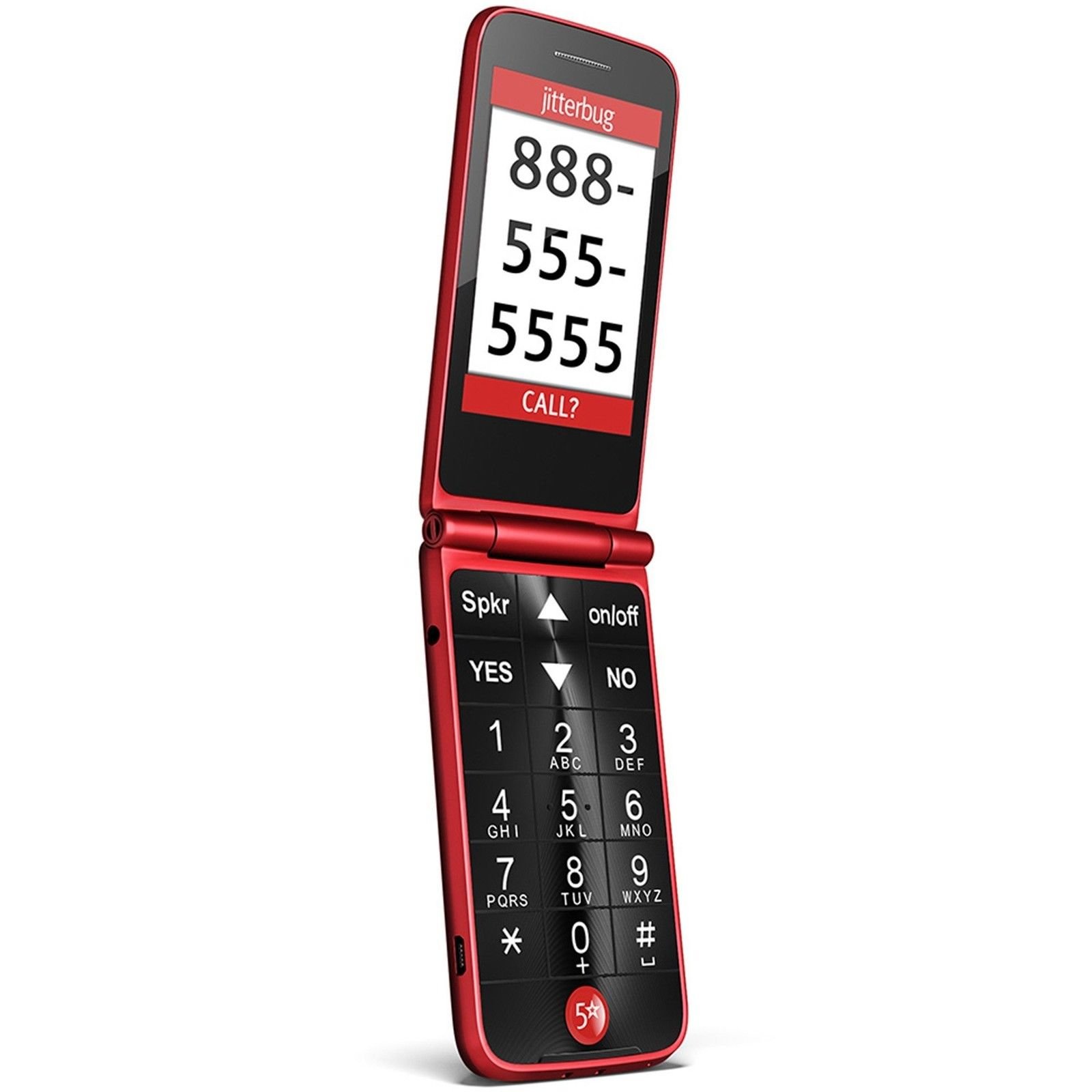
Welcome to our comprehensive guide on troubleshooting solutions for the Jitterbug Flip phone. We understand the frustration that arises when your Jitterbug Flip is not working as expected. In this article, we will provide you with detailed solutions to help you resolve common issues and get your phone back in working order. Whether you are experiencing call quality problems, display issues, or any other functionality concerns, we’ve got you covered.
Section 1: Call Quality Problems
1.1 Poor Audio Quality
If you are experiencing poor audio quality during phone calls on your Jitterbug Flip, there are a few troubleshooting steps you can take:
- Check the signal strength: Ensure that you have a strong cellular signal. Weak signals can result in distorted or dropped calls. Move to an area with better reception if needed.
- Restart your phone: Sometimes, a simple restart can resolve temporary glitches. Power off your Jitterbug Flip, wait for a few seconds, and then power it back on.
- Clean the speaker: Dust or debris can accumulate in the speaker, affecting the audio quality. Gently clean the speaker using a soft cloth or brush.
1.2 Call Drops or Inability to Make/Receive Calls
If you are facing issues with call drops or are unable to make/receive calls on your Jitterbug Flip, follow these steps:
- Check network coverage: Ensure that you are within an area with network coverage. Verify with your service provider if there are any known network outages in your area.
- Check call settings: Confirm that call forwarding, call barring, or any other call-related settings are not enabled by mistake. Adjust the settings as necessary.
- Remove any call-blocking apps: Some third-party call-blocking applications may interfere with the phone’s ability to make or receive calls. Uninstall any such apps and check if the issue persists.
Section 2: Display Issues
2.1 Blank or Unresponsive Screen
If your Jitterbug Flip’s screen is blank or unresponsive, try the following steps:
- Ensure the battery is charged: Connect your phone to a power source and let it charge for a while. A low battery can sometimes cause display issues.
- Perform a soft reset: Press and hold the power button for about 10 seconds until the phone restarts. This can often resolve minor software glitches affecting the display.
- Check for physical damage: Inspect the screen for any cracks or visible damage. If present, it may require professional repair or replacement.
Section 3: Other Functionality Concerns
3.1 Battery Draining Quickly
If you notice that the battery on your Jitterbug Flip is draining rapidly, consider these solutions:
- Adjust screen brightness: Lowering the screen brightness can help conserve battery power. Access the display settings on your phone and reduce the brightness level.
- Close unnecessary apps: Background apps consume battery even when you are not actively using them. Close any apps running in the background that you don’t need.
- Disable unused features: If you are not using certain features like Bluetooth or Wi-Fi, disable them to reduce battery usage.
3.2 Charging Issues
If you are experiencing problems with charging your Jitterbug Flip, try these troubleshooting steps:
- Use the original charger: Ensure that you are using the charger provided with the Jitterbug Flip or a compatible replacement. Incompatible chargers may not charge the phone properly.
- Clean the charging port: Dust or debris in the charging port can prevent a proper connection. Carefully clean the port using a soft, dry brush or compressed air.
- Test with a different cable and charger: If available, try using a different charging cable and charger to rule out any issues with the current ones.
Conclusion
In this comprehensive guide, we have provided you with troubleshooting solutions for various issues you may encounter with your Jitterbug Flip phone. By following the steps outlined in this article, you can resolve common problems related to call quality, display, battery life, and charging. Remember to always refer to the Jitterbug Flip’s user manual or contact the customer support team for further assistance if needed.